

Create a YouTube Channel
Once you have created a Google account, you can now set up YouTube for live streaming. Navigate to YouTube and click on your avatar image in the top right corner.
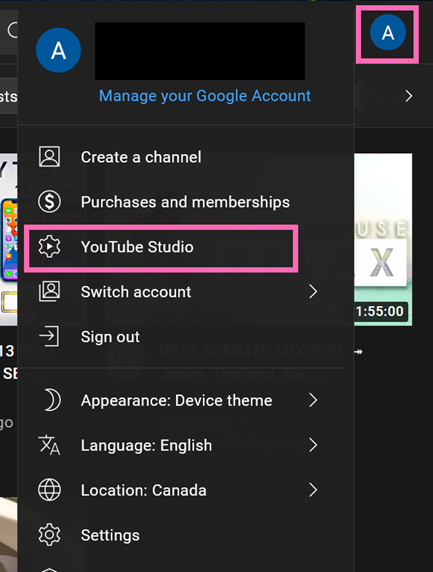
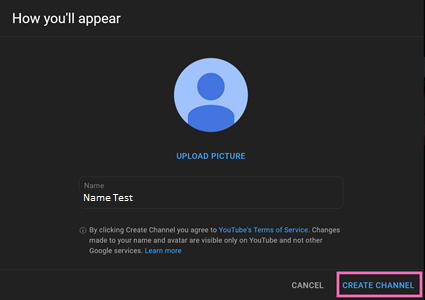
If a modal appears on the screen asking you to create a channel, you can do so by clicking on “Create channel”. You may also choose to upload a picture and change your name if you wish.
Verify Account
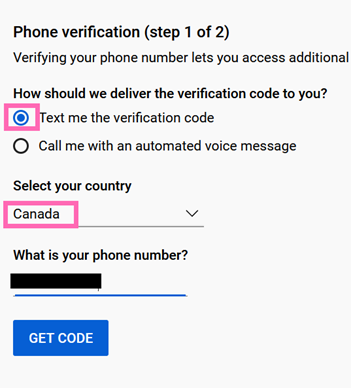
To stream on YouTube, you must first verify your Google account by linking it to a phone number. Navigate to the verification page and fill in the form. Click on “Get Code” to receive either a text or call with an automated voice message to the phone number you provide.
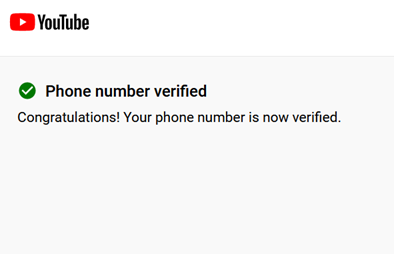
Once you type in the verification code, you will receive a confirmation that the verification process is successful.
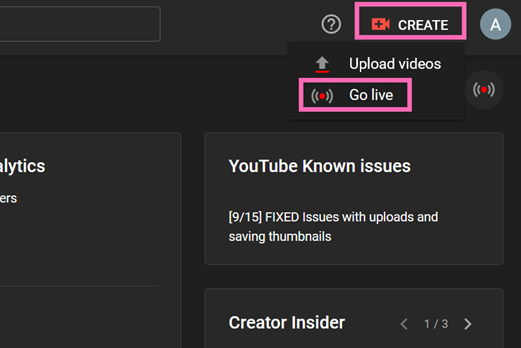
Visit your channel dashboard and click on the “Create” button located at the top right corner of the page next to your avatar image. Confirm that “Go live” is available.
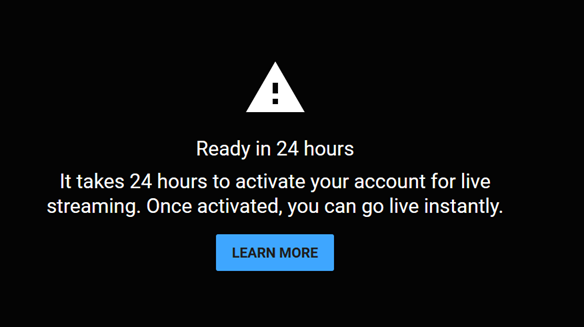
It takes around 24 hours for your account to be activated for live streaming. If so, you may see the following message when you click the button.
Schedule a Stream on Youtube
Once the account is activated, you should see the “Schedule stream” button at the top right corner of the page when you click “Go live”. Any streams you schedule will appear under the “Manage” tab, which should be empty if you haven’t scheduled any yet. Click on the button to set up a new stream.



